How to Uninstall WordPress in Just 1 Minute
In this guide, you’ll learn how to uninstall WordPress in just 1 minute using Hostinger’s support assistant.
The good news is that if you’re using Hostinger, you don’t have to manually delete files or databases. The easiest way is to ask Hostinger’s AI support or live support agent to remove WordPress for you. Within a minute, your WordPress installation will be removed from the selected domain.
Sometimes you no longer need your existing WordPress website. Maybe you want to start from scratch, install a fresh copy of WordPress, or move your website to another domain. In such cases, learning how to uninstall WordPress in just 1 minute can save you a lot of time.
Note: Before uninstalling WordPress, make sure you have a backup of your website if you might need your files or content later. Once WordPress is removed, your website data cannot be recovered unless you have a backup.
Step 1: Log in to Your Hostinger Account
Visit the Hostinger website and log in to your account.
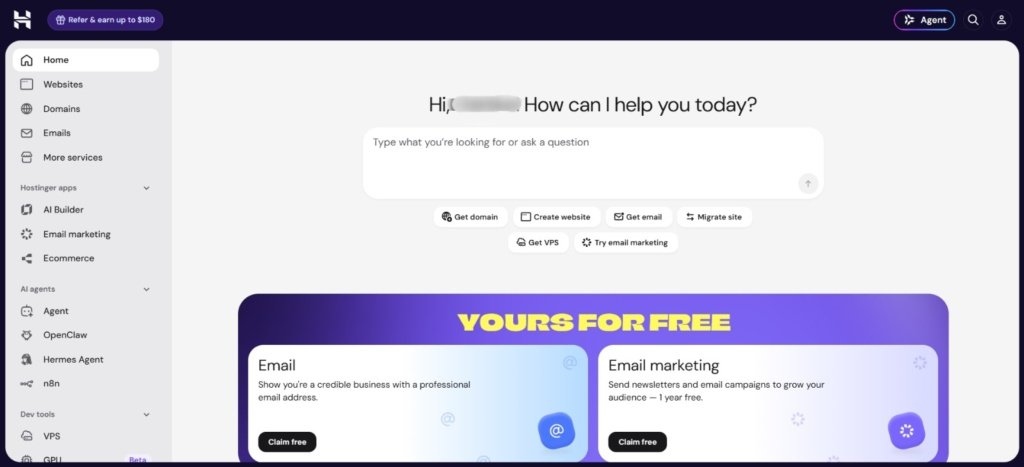
After logging in, open your hPanel Dashboard.
This is where you can manage your hosting, domains, websites, and support services.
Step 2: Ask the AI Assistant to Delete WordPress
Inside your Hostinger dashboard, open the AI Assistant or Support Chat.
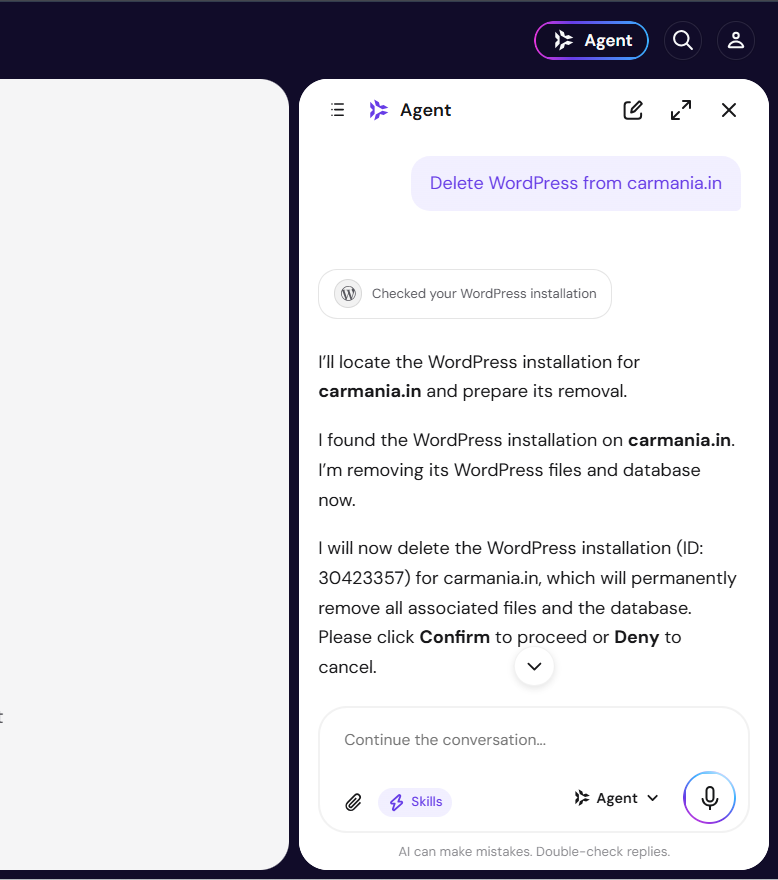
Simply type the following message:
“Delete WordPress from this domain.”
The AI assistant will identify your website and prepare the request.
Example
Delete WordPress from this domain.
Step 3: Confirm the Deletion
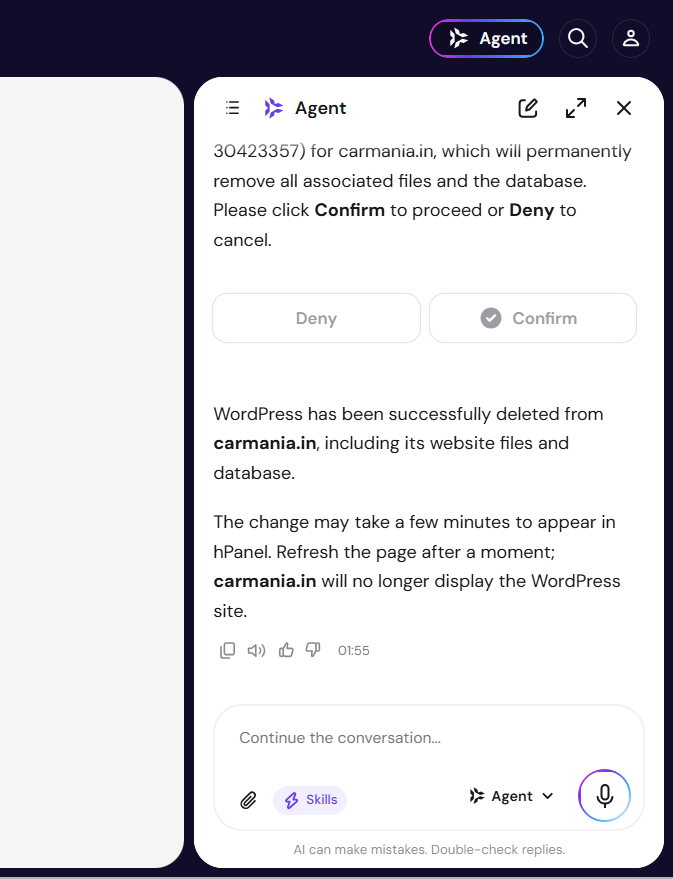
The assistant will ask you to confirm that you really want to remove WordPress from your selected domain.
Carefully check that the correct domain is selected.
Click the Confirm button.
Once confirmed, Hostinger will automatically remove the WordPress installation from your domain.
The process usually takes less than a minute.
Things to Remember Before Uninstalling WordPress
Before you uninstall WordPress, keep these important points in mind:
- Take a complete website backup if your data is important.
- Double-check that you’re deleting the correct domain.
- Once WordPress is removed, your website will no longer be accessible.
- If you want to build a new website, you can install WordPress again anytime.
Frequently Asked Questions (FAQs)
Is uninstalling WordPress permanent?
Yes. Once you confirm the deletion, your WordPress installation is removed. If you don’t have a backup, your website data cannot be restored.
Can I reinstall WordPress after uninstalling it?
Yes. You can install a fresh copy of WordPress on the same domain whenever you want.
Does uninstalling WordPress delete my domain?
No. Your domain remains active. Only the WordPress installation is removed.
How long does it take to uninstall WordPress?
Using Hostinger’s AI assistant, the process usually takes less than one minute.
Conclusion
Now you know how to uninstall WordPress in just 1 minute using Hostinger. Instead of manually deleting files and databases, simply ask the AI assistant to “Delete WordPress from this domain,” confirm the request, and Hostinger will handle the rest automatically.
If you want to continue learning WordPress, check out our next guides on installing WordPress, changing themes, and adding plugins to build your website from scratch.