WordPress for Beginners: Understanding Website Development Basics
In this guide, you’ll learn wordpress for beginners in simple language with practical examples. Once you understand them, learning WordPress becomes much easier.
What is WordPress?
If you’ve searched online for ways to build a website, you’ve probably come across WordPress. It is one of the most popular website-building platforms in the world and is trusted by beginners, bloggers, businesses, and large organizations alike.
For anyone learning WordPress for Beginners, understanding what WordPress is and why it is so widely used is an important step.
Simple Definition
WordPress is a Content Management System (CMS) that allows you to create, manage, and publish websites without needing advanced programming skills.
Originally launched as a blogging platform, WordPress has evolved into a powerful CMS capable of building almost any type of website.
Today, WordPress is used to create:
- Business websites
- Personal blogs
- E-commerce stores
- Portfolio websites
- Educational websites
- News portals
- Membership websites
- Non-profit websites
Whether you’re creating your first blog or launching an online business, WordPress offers an easy and flexible way to get started.
Why is WordPress So Popular?
Millions of people choose WordPress because it is simple to use and highly customizable. Even users with little technical knowledge can build a professional-looking website.
Some of the reasons behind its popularity include:
- Beginner-friendly dashboard
- No advanced coding required
- Thousands of free and premium themes
- More than 50,000 plugins for extra features
- Regular security updates
- SEO-friendly structure
- Large global community
- Flexible for websites of all sizes
These features make WordPress a suitable platform for both beginners and experienced developers.
How Does WordPress Work?
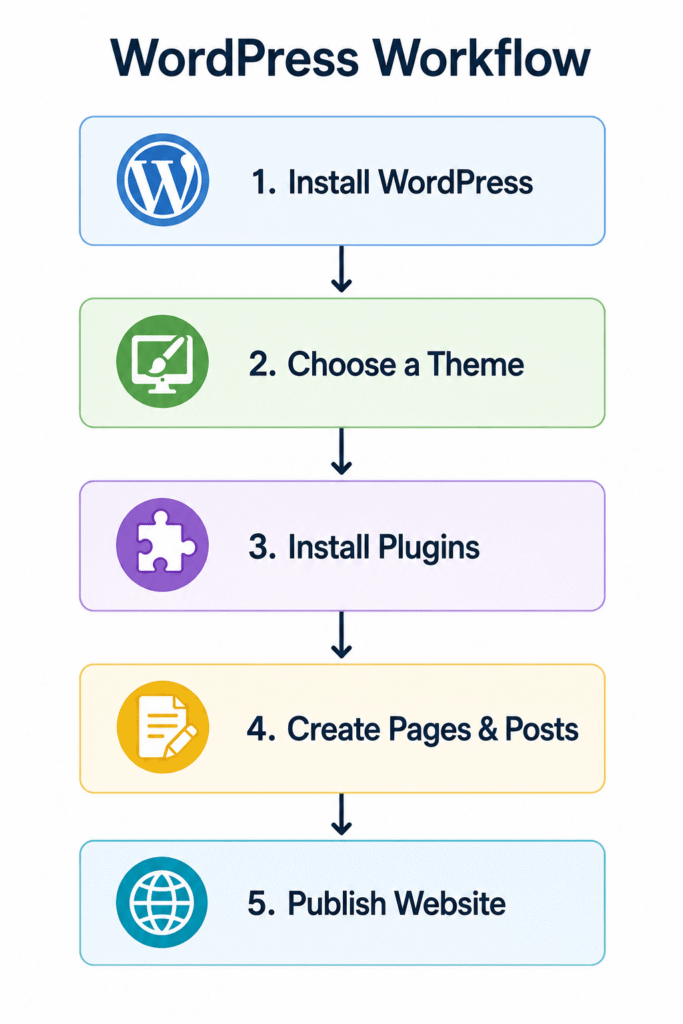
WordPress helps you manage your website through an easy-to-use dashboard.
Instead of writing code for every page, you can:
- Create new pages
- Publish blog posts
- Upload images
- Install themes
- Add plugins
- Manage menus
- Update content
All these tasks can be performed from one central dashboard.
Main Components of WordPress
1. Themes
A theme controls the appearance of your website.
It determines:
- Colors
- Fonts
- Layout
- Header
- Footer
- Page design
You can change your website’s design by installing a different theme without changing your content.
2. Plugins
A plugin adds new features to your website.
Popular plugins allow you to:
- Improve SEO
- Create contact forms
- Add security
- Speed up your website
- Build online stores
- Create backups
Plugins make WordPress extremely flexible because you can add only the features you need.
3. Dashboard
The dashboard is the control panel where you manage your website.
From here, you can:
- Write blog posts
- Edit pages
- Upload media
- Manage users
- Install themes
- Configure plugins
- Change website settings
Types of Websites you can Built with WordPress
| Website Type | Can WordPress Build It? |
| Blog | ✅ Yes |
| Business Website | ✅ Yes |
| Online Store | ✅ Yes |
| Portfolio | ✅ Yes |
| Educational Website | ✅ Yes |
| News Website | ✅ Yes |
| Membership Website | ✅ Yes |
This Flexibility is one of the main reasons why WordPress is recommended for beginners.
WordPress.org vs WordPress.com
One of the biggest sources of confusion for beginners is the difference between WordPress.org and WordPress.com.
Although they have similar names, they are two different platforms designed for different types of users.
Understanding this difference is essential when learning WordPress for Beginners.
What is WordPress.org?
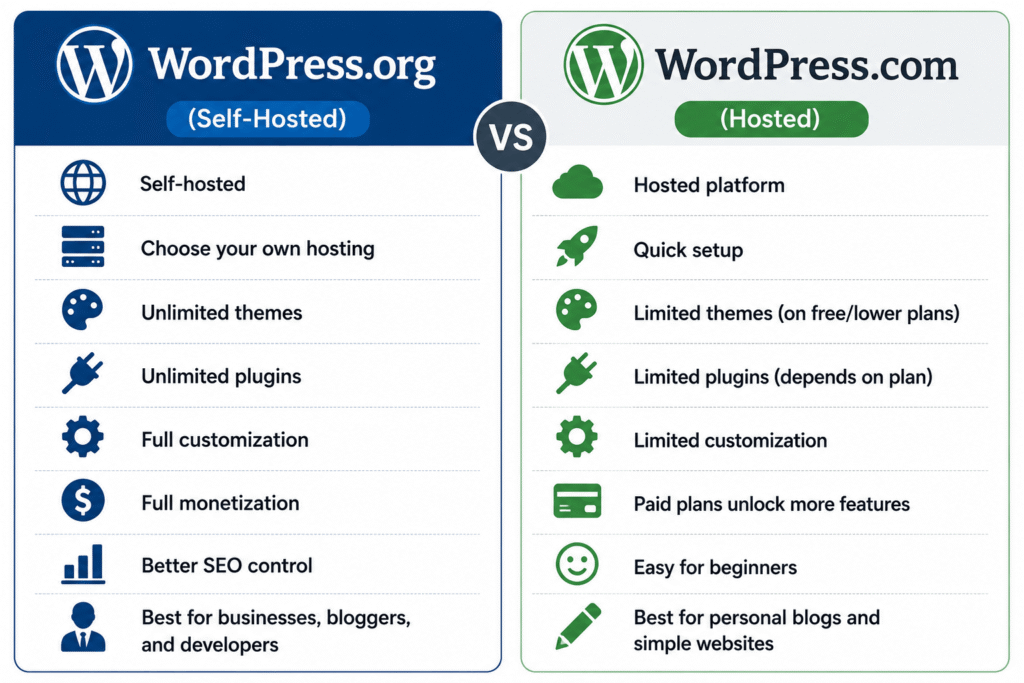
WordPress.org is the self-hosted version of WordPress.
You download the WordPress software for free and install it on your own web hosting account.
This option gives you complete ownership and control over your website.
With WordPress.org, you can:
- Install any theme
- Install any plugin
- Customize your website freely
- Add custom code
- Monetize your website
- Improve SEO without major limitations
It is the preferred choice for bloggers, businesses, freelancers, and developers.
What is WordPress.com?
WordPress.com is a hosted website-building service.
Instead of arranging your own hosting, the platform hosts your website for you.
It is easier to set up, but some customization options are limited depending on your plan.
WordPress.com is suitable for:
- Personal blogs
- Hobby websites
- Beginners who want a simple setup
WordPress.org vs WordPress.com Comparison
| Feature | WordPress.org | WordPress.com |
| Hosting | You choose your own hosting | Hosting included |
| Domain | You manage it | Available through plans |
| Themes | Unlimited | Limited on lower plans |
| Plugins | Unlimited | Limited depending on plan |
| Customization | Full control | Limited |
| Monetization | Full freedom | Depends on plan |
| Best For | Businesses, bloggers, professionals | Personal websites and beginners |
Which One is Better?
The answer depends on your goals.
Choose WordPress.org if you:
- Want complete control
- Plan to grow your website
- Need advanced customization
- Want better SEO opportunities
- Intend to earn money from your website
Choose WordPress.com if you:
- Want the easiest setup
- Are creating a personal blog
- Don’t need many advanced features
- Prefer someone else to manage the hosting
For most people learning WordPress for Beginners, WordPress.org is often the better long-term choice because it offers greater flexibility and room for growth.
Benefits of WordPress
By now, you’ve learned what WordPress is and the difference between WordPress.org and WordPress.com. The next question many beginners ask is, “Why should I choose WordPress instead of another website builder?”
The answer lies in its flexibility, ease of use, and large ecosystem. These are some of the reasons why millions of websites around the world are built with WordPress.
1. Easy to Use
One of the biggest advantages of WordPress is its beginner-friendly interface.
You don’t need to be a web developer or have advanced coding skills to build a professional website. The dashboard is simple to navigate, allowing you to create pages, publish blog posts, upload images, and manage your website with ease.
This makes WordPress an excellent choice for students, bloggers, freelancers, and small business owners.
2. No Coding Required
Many people believe they need to learn programming before creating a website. Fortunately, WordPress proves that’s not true.
With ready-made themes and plugins, you can build a fully functional website without writing code. If you later decide to learn HTML, CSS, or PHP, WordPress also gives you the flexibility to customize your website further.
3. Thousands of Themes
A theme controls the design and appearance of your website.
WordPress offers thousands of free and premium themes for different industries, including:
- Business websites
- Blogs
- Online stores
- Portfolios
- Educational websites
- Restaurants
- Healthcare websites
You can change your website’s design without losing your content, making it easy to refresh your site’s appearance whenever needed.
4. Powerful Plugins
Plugins are one of WordPress’s greatest strengths.
They allow you to add new features without developing them from scratch.
Popular plugin categories include:
- SEO optimization
- Contact forms
- Website security
- Image optimization
- Online stores
- Backups
- Performance optimization
Whether you want to improve your website’s speed or add an online booking system, there’s usually a plugin available to help.
5. SEO-Friendly
Search engine optimization (SEO) is essential if you want people to find your website through search engines.
WordPress is designed with clean code and supports many SEO best practices.
You can also install SEO plugins that will help you:
- Optimize page titles
- Write meta descriptions
- Create XML sitemaps
- Improve content readability
- Manage redirects
- Add schema markup
This is one of the main reasons why many bloggers choose WordPress as their first website platform.
6. Mobile Responsive
Most modern WordPress themes are responsive, meaning they automatically adjust to different screen sizes.
Your website can provide a good user experience on:
- Desktop computers
- Laptops
- Tablets
- Smartphones
A mobile-friendly website also supports better search engine rankings.
7. Regular Updates
WordPress is continuously improved by a large community of developers.
Regular updates help:
- Improve security
- Fix bugs
- Add new features
- Enhance performance
Keeping WordPress, themes, and plugins updated helps maintain a secure and reliable website.
8. Large Community Support
WordPress has one of the largest online communities in the world.
If you ever encounter a problem, you can find:
- Tutorials
- Documentation
- Community forums
- Video guides
- Blog articles
This makes learning WordPress for Beginners much easier because there are countless free resources available.
Is WordPress Really Free?
Another common question beginners ask is:
“Is WordPress really free?”
The answer is YES—but with a few important things to understand is that.
What Really Costs Money?
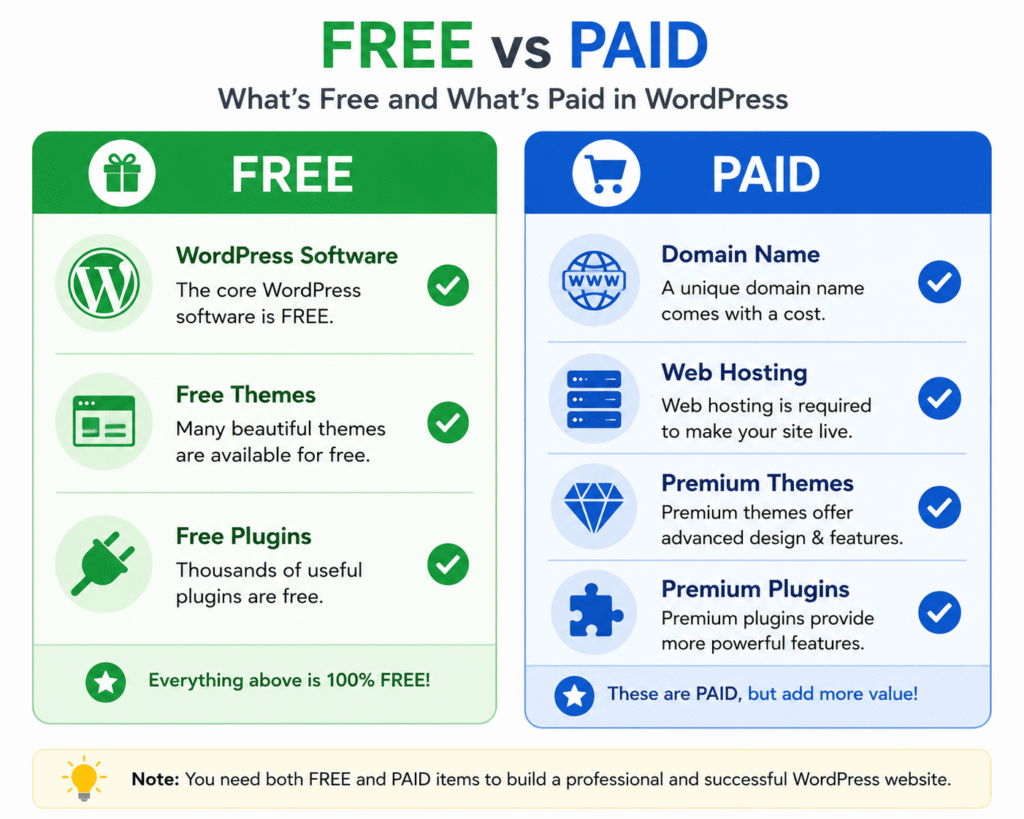
Although the software is free, you may need to pay for other services required to launch a website.
1. Domain Name
A domain name is your website’s address, such as:
“yourwebsite.com”
This usually requires an annual registration fee.
2. Web Hosting
Your website files need to be stored on a web server.
Most websites require a hosting plan, which is typically billed monthly or annually.
3. Premium Themes (Optional)
While thousands of free themes are available, some businesses choose premium themes for additional designs and advanced features.
4. Premium Plugins (Optional)
Many plugins are free, but premium versions often include extra functionality, priority support, and advanced settings.
Frontend vs Backend
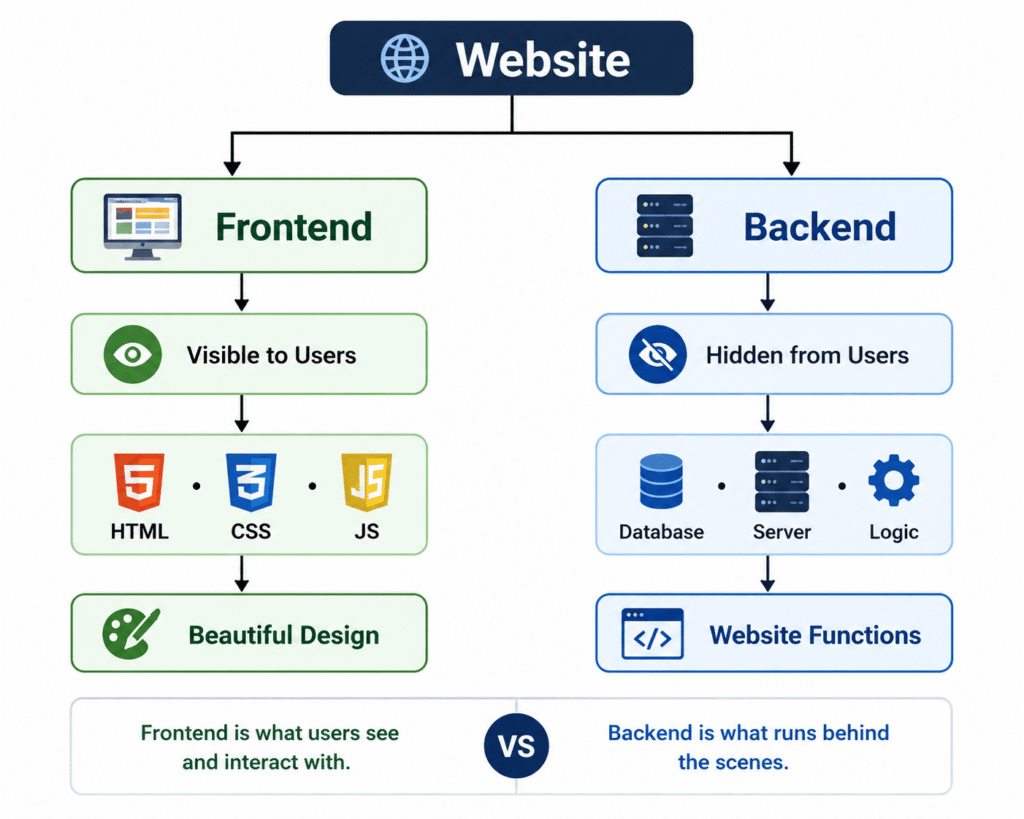
Every website has two main parts:
- Frontend
- Backend
Although visitors only see the frontend, both parts work together to make a website function properly.
Think of a restaurant.
Customers see the dining area where they sit and eat, but they don’t see the kitchen where the food is prepared.
A website works in a similar way.
- The frontend is like the dining area.
- The backend is like the kitchen.
Both are equally important.
What is Frontend?
The frontend is the part of a website that visitors can see and interact with.
Everything you click, read, or view on a website belongs to the frontend.
Examples include:
- Navigation menu
- Images
- Buttons
- Text
- Videos
- Contact forms
- Product pages
Frontend developers focus on creating websites that are visually appealing, responsive, and easy to use.
Technologies Used in Frontend
The most common frontend technologies are:
- HTML (website structure)
- CSS (design and styling)
- JavaScript (interactivity)
These technologies work together to create the website visitors see in their browsers.
What is Backend?
The backend is the hidden part of a website that visitors don’t normally see.
It manages the website’s data, processes user requests, and performs tasks behind the scenes.
For example, when someone logs into a website or places an online order, the backend handles the request and stores the information in a database.
Backend Responsibilities
The backend is responsible for:
- User login
- Database management
- Order processing
- Saving contact forms
- Managing website content
- Security
- Website performance
Popular Backend Technologies
Some commonly used backend technologies include:
- PHP
- Python
- Java
- ASP.NET
- Node.js
These technologies communicate with databases to provide dynamic website functionality.
Frontend vs Backend Comparison
| Feature | Frontend | Backend |
| Visible to visitors | Yes | No |
| Main purpose | User interface | Website functionality |
| Common technologies | HTML, CSS, JavaScript | PHP, Python, ASP.NET, Node.js |
| Database access | No | Yes |
| Used by | Visitors | Administrators and developers |
CMS vs Custom Website
Once you understand the frontend and backend, the next question is:
How are websites actually built?
There are two common approaches:
- Using a Content Management System (CMS)
- Developing a Custom Website
Let’s understand both.
What is a CMS?
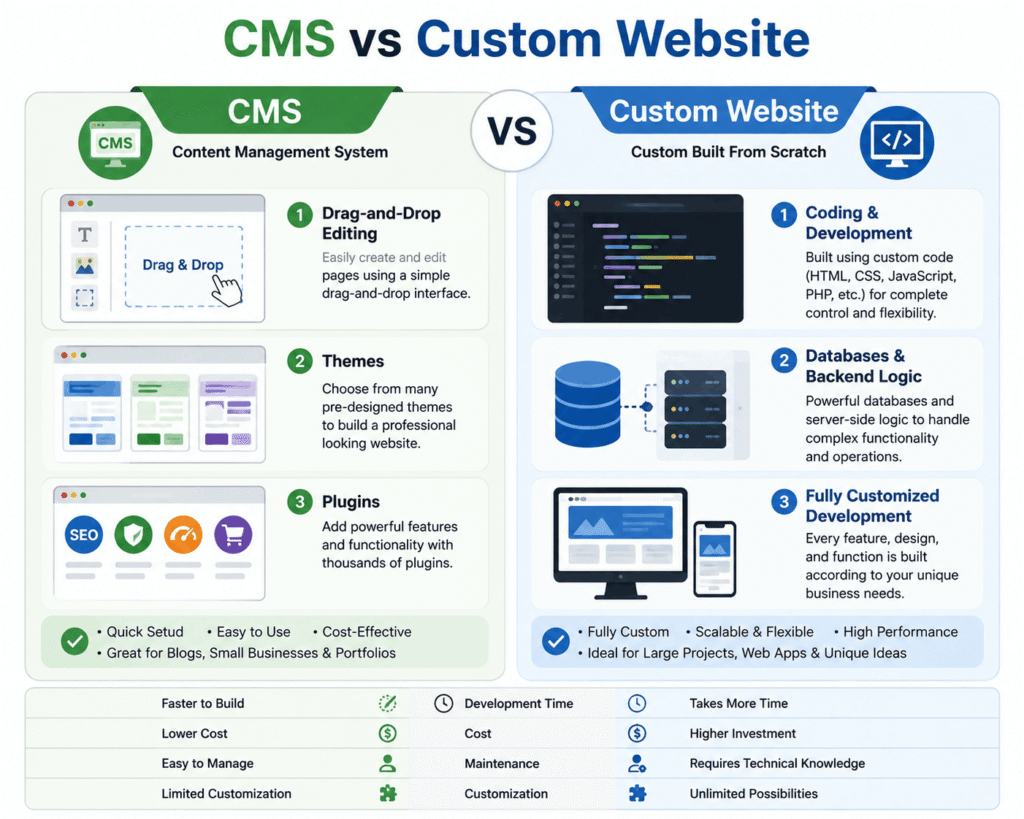
A Content Management System (CMS) is software that allows you to create, edit, and manage a website without writing much code.
Instead of building every page from scratch, you can use themes, plugins, and an easy-to-use dashboard.
A CMS makes website management much simpler, especially for beginners and small businesses.
Popular CMS platforms include:
- WordPress
- Joomla
- Drupal
Among these, WordPress is the most widely used, which is why it will be covered in detail later in this guide.
Advantages of Using a CMS
A CMS offers several benefits:
- Easy to use
- No advanced coding required
- Quick website setup
- Thousands of themes
- Large collection of plugins
- Easy content updates
- SEO-friendly features
- Strong community support
These advantages make a CMS an excellent choice for beginners and businesses that want to manage their own websites.
What is a Custom Website?
A custom website is built entirely from scratch by developers using programming languages.
Every feature, design, and functionality is created according to the client’s specific requirements.
Unlike a CMS, there are no ready-made themes or plugins. Everything is designed and developed specifically for the project.
Custom websites are commonly used for:
- Enterprise applications
- Banking systems
- Government portals
- Large business platforms
- Complex web applications
Advantages of a Custom Website
A custom website provides:
- Complete flexibility
- Unique design
- Better customization
- High scalability
- Advanced functionality
- Greater control over features
Disadvantages of a Custom Website
Despite its flexibility, a custom website also has some limitations:
- Higher development cost
- Longer development time
- Requires experienced developers
- More difficult to maintain
CMS vs Custom Website Comparison
| Feature | CMS | Custom Website |
| Coding Required | Very little | Extensive |
| Development Time | Fast | Longer |
| Cost | Lower | Higher |
| Flexibility | Good | Excellent |
| Maintenance | Easy | More complex |
| Best For | Blogs, business websites, portfolios | Large businesses and custom applications |
Which One Should You Choose?
Choosing between a CMS and a custom website depends on your goals, budget, and technical skills.
A CMS is a great option if you:
- Want to launch your website quickly
- Have a limited budget
- Prefer managing content yourself
- Don’t have advanced coding knowledge
A custom website is better if you:
- Need unique features
- Require complete design flexibility
- Expect high traffic with specialized functionality
- Have the budget for professional development
For most beginners, freelancers, bloggers, and small businesses, a CMS is the practical choice because it is easier to learn and maintain.
Frequently Asked Questions (FAQs)
1. Which is better: WordPress.org or WordPress.com?
It depends on your needs. WordPress.org offers greater flexibility and control, while WordPress.com provides an easier setup for personal websites and beginners.
2. Is WordPress secure?
Yes. When you keep WordPress, themes, and plugins updated and follow good security practices, it can be a secure platform for building websites.
3. Why choose WordPress instead of another website builder?
WordPress offers greater flexibility, customization, and control than most website builders. It provides thousands of themes and plugins, is SEO-friendly, and can be used to create any website. Unlike many website builders, WordPress also lets you expand your website as your needs grow.
4. What are some other website builders?
Besides WordPress, there are several popular website builders, including:
1) Wix, 2) Squarespace, 3) Shopify, 4) Weebly, 5) Webflow, 6) GoDaddy Website Builder
Each platform has its own features and pricing. However, WordPress remains one of the most popular choices because of its flexibility, large community, and extensive customization options.
5. Is WordPress free?
Yes, the WordPress software is completely free to download and use. However, you’ll only need to pay for a domain name and web hosting to make your website available online.
Now that you’ve learned the Basics of WordPress, it’s time to put your knowledge into practice. Install WordPress on a hosting account, explore different themes and plugins, and start building your first website.
The best way to learn WordPress is by creating a real project and experimenting with its features.